That nagging “Storage Full” warning is a sign your iPhone is suffocating. It slows everything down, stops you from saving new memories, and can even prevent you from installing critical software updates. The most effective way to clear storage iPhone space and prepare for what’s next is a targeted, two-stage cleanup. Start with a manual audit, then use a smart tool to handle the hidden clutter manual methods miss.
Table of Contents
- Why a Full iPhone Slows You Down
- Stage 1: The Manual Storage Audit
- Stage 2: Automating the Deep Clean
- How to Maintain Your Free Space
- Frequently Asked Questions (FAQ)
- Final Step: Reclaim Your Space
Why a Full iPhone Slows You Down
Think of your iPhone’s free storage like physical desk space. A clean desk lets you work efficiently. A cluttered one forces you to shuffle papers constantly, slowing you to a crawl. Your phone operates the same way.
When storage is near capacity, the system can’t manage temporary files, app caches, or memory efficiently. This causes apps to stutter, photos to take longer to save, and overall performance to dip.
The stakes are higher with a major iOS update on the horizon. Reports from Mix Vale indicate that upcoming iOS versions are emphasizing foundational performance and security upgrades. To install these updates, your iPhone needs significant free space—often several gigabytes—just to download and unpack the files. If you don’t clear storage iPhone space proactively, you risk missing these important improvements.
Stage 1: The Manual Storage Audit
Your first stop is the built-in diagnostics. Go to Settings > General > iPhone Storage. The bar graph shows your storage allocation, and the list below details exactly which apps are the biggest offenders. This is your action plan.
1. Tackle Your Largest Apps
Don’t delete apps randomly. Use the “Last Used” date and size data to make strategic decisions.
- Offload Unused Giants: For any app over 1GB you haven’t touched in 90 days, tap it and select “Offload App.” This removes the app but keeps all its data and documents on your phone. You can reinstall it instantly from the App Store, and it will be exactly as you left it. It’s instant space savings with zero loss.
- Clear App Caches: Many apps store temporary data that balloons over time. You often need to clear this within each app’s settings. For example, in Chrome, go to Settings > Privacy and Security > Clear Browsing Data.
Your First Move: In iPhone Storage, sort by size. Offload the top two or three apps you rarely use.
2. Declutter Your Photo Library
This is almost always the biggest storage hog. A 2025 analysis referenced by PCMag Middle East suggested the average user’s photo library can consume a massive portion of their device’s capacity.
- Bulk Delete by Type: Use the Photos app’s search. Type “screenshots,” “videos,” or “selfies” to group them for fast, bulk selection and deletion.
- Permanently Delete: Go to Albums > Utilities > Recently Deleted. Tap “Select” and “Delete All.” Items here linger for 30 days, still using space.
- Optimize with iCloud: Enable Settings > Photos > Optimize iPhone Storage. This stores full-resolution photos and videos in iCloud, keeping smaller, device-friendly versions on your iPhone. It happens automatically.
3. Clean Up Messages and Mail
Years of conversations are packed with videos, photos, and files you’ll never open again.
- Set Messages to Auto-Delete: Navigate to Settings > Messages > Keep Messages and select “1 Year.” This automatically purges old conversations and their bulky attachments.
- Delete Large Attachments: In a message thread, tap the contact’s name at the top, then tap “Info.” Scroll to see all photos and files. You can select and delete them here without touching your text history.
4. Reduce System Data
The mysterious “System Data” or “Other” category contains caches, logs, and temporary files. You shrink it indirectly.
- Clear Safari Cache: Go to Settings > Safari > Clear History and Website Data.
- Restart Your iPhone: A simple power off and on clears temporary system caches and can reduce this category.
- Update iOS and Apps: Always run the latest software. Updates often include fixes for cache management and storage bugs.
Stage 2: Automating the Deep Clean
Manual cleaning gets the obvious clutter, but it has major blind spots. The real waste is often hidden in places you’d never think to look.
A manual audit misses:
- Duplicate Files: The same PDF saved in Files, emailed to yourself, and stored in Notes.
- Near-Identical Photos: The five nearly-identical shots you took to get one good one.
- Forgotten Downloads: Large files from months ago, buried deep in your Downloads folder.
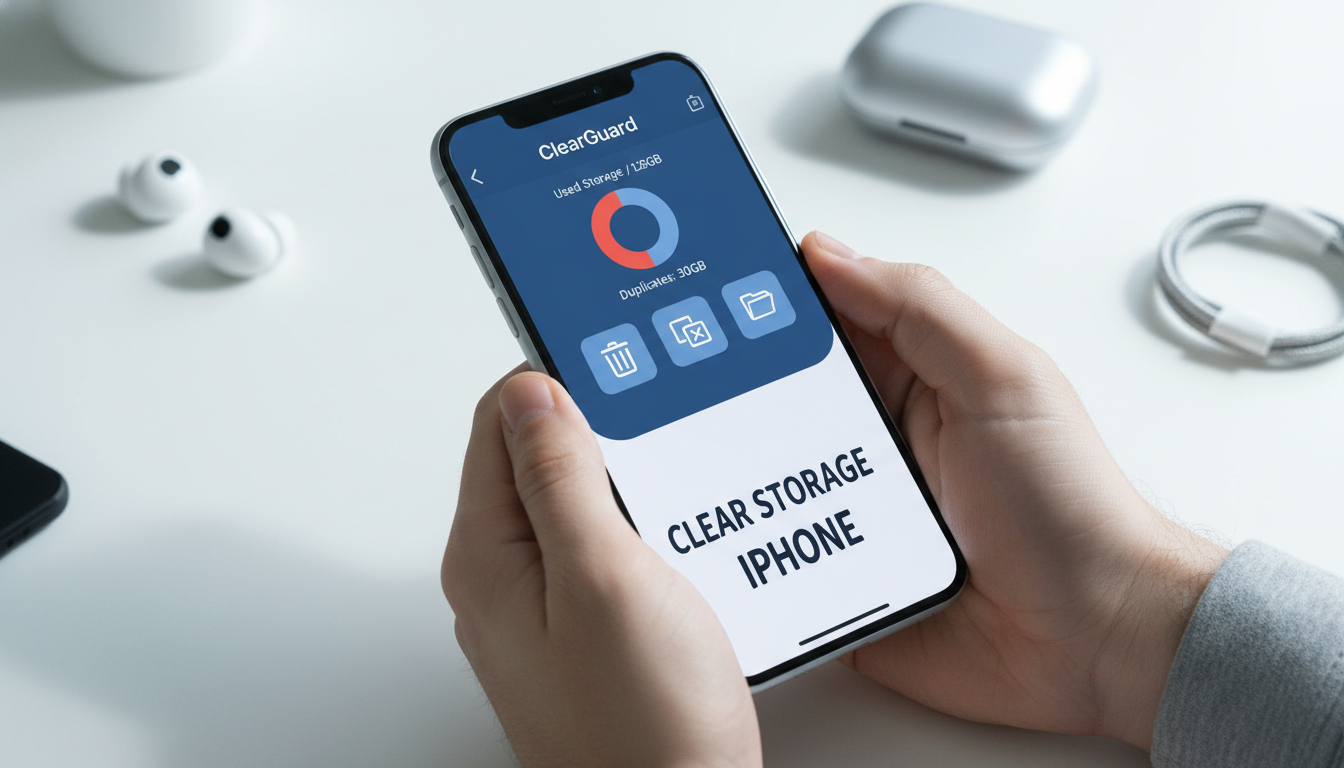
This is where a dedicated tool changes the game. An app like ClearGuard performs a deep, system-wide scan that goes far beyond the surface-level report in your Settings. It finds the redundant and low-value files that are silently hogging space.
ClearGuard organizes the chaos by identifying:
- Exact and similar duplicates across your entire device.
- Blurry photos, accidental videos, and poor-quality screenshots.
- Large, old files you’ve completely forgotten about.
The process is straightforward: scan, review the categorized results, and safely delete with a tap. You maintain full control with previews of everything. What might take a weekend of manual hunting is done in minutes. Using a tool like this before an iOS update ensures you’re not just making room—you’re performing a precision cleanup that maximizes performance-ready space.
How to Maintain Your Free Space
After the big cleanup, adopt simple habits to prevent the clutter from creeping back.
Your Monthly Maintenance Checklist
- Check iPhone Storage: On the first of each month, open Settings > General > iPhone Storage. See which app grew the most and investigate.
- Review Recent Downloads: After finishing a project, immediately go to the Files app and clear out related documents and downloads.
- Pre-Update Verification: Before any iOS update, ensure you have at least 10-15GB of free space for a smooth installation.
Set-It-and-Forget-It Settings
Configure these options to put your storage management on autopilot.
| Setting | Where to Find It | What It Does |
|---|---|---|
| Offload Unused Apps | Settings > App Store > Offload Unused Apps | Automatically removes apps you don’t use, keeping their data safe. |
| Optimize Photo Storage | Settings > Photos > Optimize iPhone Storage | Keeps space-saving versions of photos on your device, originals in iCloud. |
| Auto-Delete Old Messages | Settings > Messages > Keep Messages > 1 Year | Prevents years of message attachments from accumulating. |
| Review Large Attachments | Settings > General > iPhone Storage > Messages | Gives direct access to the largest files hiding in your messages. |
Frequently Asked Questions (FAQ)
Q: How much space do I need free for the iOS 17 update? A: Aim for a minimum of 10GB, but 15GB is a safer target. The update needs room to download, verify, and install. Insufficient space is the most common cause of failed updates.
Q: What is “Other” system storage, and how do I reduce it? A: “Other” is a catch-all for system caches, logs, and temporary files. You can’t delete it directly. To shrink it, clear your Safari history and website data, restart your iPhone, and ensure all apps are updated. If it grows abnormally large (e.g., over 50GB), you may need to back up and restore your device.
Q: Will offloading an app delete my login information? A: No. Offloading only removes the app’s executable files. Your documents, settings, and saved login data (within the app’s sandbox) remain on your device. Reinstalling the app restores it with all your data intact.
Q: What’s the quickest way to free up 10GB today? A: 1. Enable iCloud Photo Optimization in Settings > Photos. 2. Offload your 2-3 largest, unused apps from iPhone Storage. 3. Clear Safari history and data and restart your phone. For the fastest, most thorough method, a dedicated cleaner like ClearGuard can identify and remove all this clutter in one automated scan.
Final Step: Reclaim Your Space
A full iPhone isn’t just an inconvenience—it’s a bottleneck on your daily life and a barrier to important security and performance updates. With the focus of new iOS updates being on core system improvements, as noted by Mix Vale, preparing your device is a smart, practical step.
You can spend hours on a partial manual cleanup, or you can use a tool engineered to clear storage iPhone space comprehensively. ClearGuard removes the hidden duplicates and forgotten files that manual cleaning can’t find, organizing your iPhone in minutes.
Ready to unlock space, boost performance, and prepare for iOS 17? Download ClearGuard from the App Store and get started. https://apps.apple.com/app/id6759450640