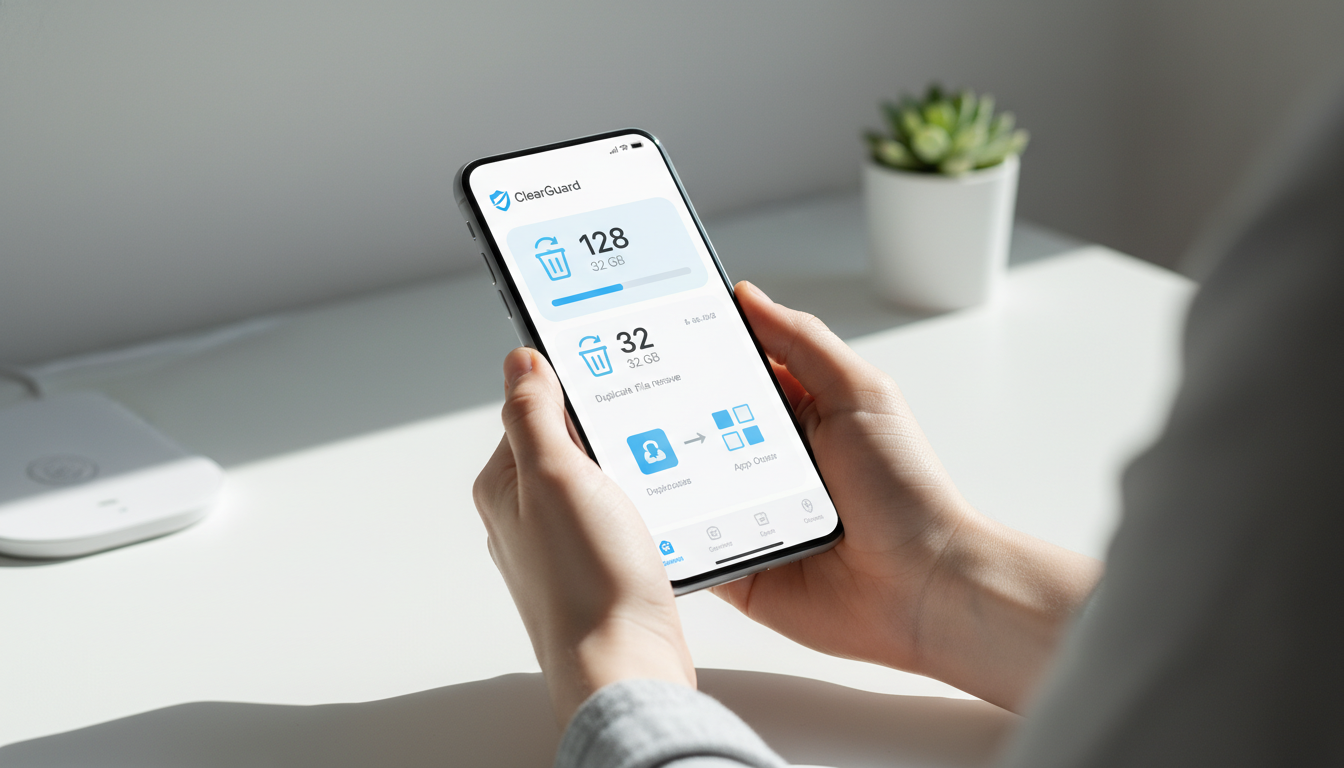
Your iPhone feels sluggish, and now it’s prompting you to install a major new iOS update. Installing it on a cluttered device is a recipe for a slow, frustrating experience. The most effective step you can take is a strategic cleanup first. This guide provides the exact steps to optimize iPhone performance and ensure the iOS 26.3.1 update installs smoothly, making your phone feel faster and more responsive.
Table of Contents
- Why You Must Clean Your iPhone Before Updating to iOS 26.3.1
- The Pre-Update Checklist: 5 Essential Steps
- The Deep Storage Cleanup: Targeting Hidden Space Hogs
- System Settings to Tweak for Maximum Speed
- Maintaining Peak Performance Post-Update
- Frequently Asked Questions (FAQ)
Why You Must Clean Your iPhone Before Updating to iOS 26.3.1
The iOS 26.3.1 update is now available. According to reports from Geeky Gadgets and Mix Vale, this release focuses heavily on performance tuning and security enhancements, likely preparing devices for future hardware. It’s a significant software service for your phone.
Installing this on a nearly full iPhone is a critical error. Your device requires substantial free space to unpack and install the update efficiently. Research from the University of California, San Diego indicates that when flash storage (like your iPhone’s SSD) is over 90% full, write speeds can slow by up to 75%. This translates directly to a longer, more error-prone update process and continued sluggishness afterward.
Clearing space isn’t just about making room for the update file. It allows the new performance optimizations in iOS 26.3.1 to operate on a clean slate, free from the burden of old cache files and digital clutter. You’ll experience the intended speed boost.
The Pre-Update Checklist: 5 Essential Steps
Complete these five actions before you tap “Download and Install.” This should take less than 20 minutes.
- Audit Your Storage Accurately: Navigate to Settings > General > [iPhone] Storage. Wait patiently for the loading bar to finish. This forces iOS to recalculate your true storage usage. Your goal is to have at least 20GB free for a safe update.
- Create a Verified Backup: Ensure your data is safe. Use iCloud (Settings > [Your Name] > iCloud > iCloud Backup > Back Up Now) or connect to a computer with Finder (Mac) or iTunes (PC). Verify the backup completes successfully.
- Delete App Cache Manually: For your largest apps (like social media), use their internal tools. In Instagram, go to Settings > Data and Storage > Clear Cache. In Chrome, go to Settings > Privacy and Security > Clear Browsing Data.
- Remove Offline Content: Open music, podcast, and video streaming apps. Go to your library’s “Downloads” section and delete anything you’ve already listened to or watched. This single step can recover 8-15GB for many users.
- Perform a Forced Restart: Clear your phone’s active memory. For iPhone 8 and later: Press and release the Volume Up button, press and release the Volume Down button, then press and hold the Side button until the Apple logo appears.
The Deep Storage Cleanup: Targeting Hidden Space Hogs
The generic “System Data” category and duplicate files are where most unused storage hides. Tackling these areas creates lasting free space.
Conquering the “System Data” Blob
This mysterious section in your storage breakdown isn’t just iOS. It’s a collection of:
- Cached files from apps and web browsing.
- Old update files that failed to delete.
- Logs and diagnostic data.
- Temporary files from messaging apps.
You can reduce its size significantly.
- Clear Safari’s Deep Cache: Go to Settings > Safari > Advanced > Website Data > Remove All Website Data. Be aware this will log you out of most websites in Safari.
- Set Messages to Auto-Delete: Navigate to Settings > Messages > Keep Messages and select “1 Year.” This automatically removes older message threads but keeps your saved photos.
- Manage App-Specific Storage: In Settings > General > [iPhone] Storage, tap on large apps. If the “Documents & Data” size is huge, consider deleting and reinstalling the app (your account data will remain).
The Duplicate Files Problem
Your Photos and Files apps are likely filled with redundant copies. Think multiple saves of the same document, near-identical photos from a burst shot, or screenshots you took several times.
Manually finding these is a tedious, almost impossible task. A dedicated tool like ClearGuard automates this. It scans your libraries for exact and similar duplicates, presenting them in an easy review format. You can quickly select which copies to delete, often reclaiming gigabytes of space in a single action. It’s the most efficient way to reach your storage goal before the update.
The Strategic App Cleanup Table
Not all apps use storage the same way. Use this table to target your biggest offenders effectively.
| App Type | Common Storage Culprit | Recommended Cleanup Action |
|---|---|---|
| Messaging (WhatsApp, Signal) | Large video files and chat backups. | Use the app’s built-in storage manager (e.g., WhatsApp: Settings > Storage and Data > Manage Storage). Review and delete by chat. |
| Social Media (Facebook, TikTok) | Massive video and image cache. | Use the in-app cache clearing option. For Facebook: Settings & Privacy > Settings > Media > Clear Cache. |
| Email Clients (Outlook, Gmail) | Downloaded attachments and local copies. | Change settings to keep less mail on device. In Outlook: Settings > Storage > Review large items. |
| Navigation (Google Maps, Apple Maps) | Downloaded offline regions. | Go to the app’s offline areas section (e.g., Google Maps: Profile > Offline Maps) and delete unused regions. |
| Large Games (>3GB) | The entire game asset package. | Consider “Offloading” the app (Settings > General > iPhone Storage > [App Name] > Offload App). This removes the app but keeps its data, saving significant space. |
System Settings to Tweak for Maximum Speed
With storage freed up, these adjustments refine your iPhone’s responsiveness, which is crucial for older models running the new iOS.
Minimize Background Processes
Apps refreshing in the background drain battery and CPU.
- Go to Settings > General > Background App Refresh. You can disable it entirely or set it to “Wi-Fi Only.” Turn it off for apps that don’t need live updates (e.g., games, utility apps).
Simplify Animations and Effects
Reducing graphical workload can make every interaction feel faster.
- Reduce Motion: Enable this in Settings > Accessibility > Motion > Reduce Motion. This replaces the parallax and zoom effects with simpler fades.
- Reduce Transparency: In Settings > Accessibility > Display & Text Size, turn on “Reduce Transparency.” This solidifies frosted glass effects, which can improve rendering speed on older phones.
The Nuclear Option for Persistent Lag
If your phone has been slow for months, a non-destructive reset can help.
- Go to Settings > General > Transfer or Reset iPhone > Reset > Reset All Settings. This will not erase your photos or apps, but it will reset your Wi-Fi passwords, wallpaper, and notification preferences. It often resolves deep-seated software glitches.
Maintaining Peak Performance Post-Update
After iOS 26.3.1 is successfully installed, adopt these habits to keep your phone fast.
- Automate App Cleanup: Enable Settings > App Store > Offload Unused Apps. This automatically removes apps you haven’t used in a while but keeps their documents.
- Review Location Services: Go to Settings > Privacy & Security > Location Services. Set any app that doesn’t genuinely need your location to “Never” or “While Using.” Constant GPS use is a background resource drain.
- Manage Photo Library Smartly: Ensure Settings > Photos > Optimize iPhone Storage is on. This keeps full-resolution photos and videos in iCloud, saving massive local space.
- Schedule Regular Duplicate Scans: Make clutter prevention a habit. Running a scan with ClearGuard once a month prevents duplicate photos and files from piling up again, keeping your storage optimized for the next update.
Frequently Asked Questions (FAQ)
Q: The iOS 26.3.1 update failed, saying I need more space even after deleting some things. Why? A: The update process needs extra overhead space to unpack and verify files. If you’re cutting it close, it can fail. Go back through the deep cleanup steps, specifically targeting streaming app downloads and using a tool like ClearGuard for duplicates. Aim for a solid 25GB of free space before trying again.
Q: Will offloading an app delete my data or progress? A: No. Offloading removes the app binary but preserves all its documents and data. When you reinstall the app from the App Store, your data is restored. It’s a safe way to free up space from large apps you use infrequently.
Q: How can a duplicate finder like ClearGuard tell which photo is the “best” one to keep? A: It doesn’t decide for you. A trustworthy app uses visual analysis to group similar images and then shows them to you side-by-side. You make the final choice on which version to keep, ensuring you never lose an important photo. ClearGuard provides this comparison view for your review.
Q: My iPhone is still slow after the update and all these steps. Is it time for a new phone? A: Not necessarily. First, try the “Reset All Settings” option mentioned above. If severe lag persists—especially in core functions like the keyboard or phone app—it may indicate that your device’s hardware is struggling with the demands of the newer iOS. A battery health below 80% can also cause performance throttling.
Q: How much free storage should I maintain for normal, healthy operation? A: A good rule of thumb is to keep at least 15-20% of your total storage free. For a 128GB iPhone, that’s roughly 20-25GB. This gives the system room to operate efficiently for caching, app updates, and general tasks.
A fast, reliable iPhone hinges on proactive maintenance, not just new software. By thoroughly cleaning your device before installing a performance-focused update like iOS 26.3.1, you ensure it runs as intended. You’ll prevent errors, enjoy a smoother experience, and extend the useful life of your device. Start with the cleanup, install the update with confidence, and keep that snappy feel with simple ongoing habits.
Tackle the biggest hidden space-waster first. Download ClearGuard from the App Store to quickly find and remove duplicate photos and files, giving your iPhone the clean slate it needs.